DaVinci Resolve Hardware Requirements: Complete Guide for 2026
What hardware do you actually need for DaVinci Resolve? GPU, CPU, RAM and storage recommendations for 4K editing, color grading, and Fusion VFX work.
Blackmagic's official system requirements are designed to launch Resolve, not to sustain professional grading sessions with clients present. Most hardware guides repeat minimum specs or default to generic advice about buying the fastest GPU available. That framing breaks down once timelines grow complex and Resolve runs continuously under load. This guide restructures Resolve performance by workflow so bottlenecks are explicit rather than implied. It is especially relevant for VFX & Virtual Production teams running DaVinci Resolve as part of a larger pipeline.
Why Resolve Performance Is Workflow-Dependent
Resolve uses a hybrid compute model, but real-world performance is not evenly distributed. GPU execution dominates most sustained workloads. CPU, memory, and storage only matter when specific subsystems are engaged. Misunderstanding this leads to overspending in the wrong areas.
GPU Utilization Across Resolve Pages
Resolve performance changes dramatically depending on the active page. Each page stresses different parts of the system. [INSERT TABLE: Resolve page by page GPU vs CPU utilization]
What this means in practice
Color work is almost entirely GPU-bound. Editorial work splits between CPU timeline logic and GPU decode. Fusion shifts behavior depending on dimensionality. Delivery workloads return to heavy GPU utilization due to hardware encoding.
| Resolve Page | GPU Utilization | CPU Utilization | Primary Bottleneck |
|---|---|---|---|
| Color | 85–90% | Low | GPU / VRAM |
| Edit | 60–70% | Moderate | GPU decode + CPU timeline |
| Fusion 2D | 70–80% | Low | GPU |
| Fusion 3D | Low | 60–80% | CPU |
| Delivery | 80–95% | Low | GPU encoder |
Why CPU Power Rarely Improves Color Performance
Resolve 20 executes grading operations on the GPU. This includes primaries, secondaries, Power Windows, qualifiers, and node graphs. The CPU is limited to orchestration tasks. Adding cores does not improve grading throughput once basic CPU adequacy is met.
Fusion Is the One CPU-Heavy Exception
Fusion does not behave like the rest of Resolve. Its execution model depends entirely on the type of work being performed.
Fusion workload split
2D compositing scales efficiently on the GPU. 3D rendering shifts almost entirely to the CPU. Multi-GPU systems introduce synchronization overhead rather than parallel gains. [INSERT TABLE: Fusion workload scaling behavior] Puget Systems testing shows that Fusion 3D performance declines as GPUs are added. This makes high core-count CPUs more valuable than additional graphics cards for Fusion-heavy workflows.
| Fusion Workload | Scaling Behavior | Multi-GPU Benefit |
|---|---|---|
| 2D Compositing | GPU-scaled | Moderate |
| 3D Rendering | CPU-bound | Negative |
| Multi-GPU (2 GPUs) | 0.85–0.95× | Reduced |
| Multi-GPU (3 GPUs) | 0.70–0.85× | Harmful |
VRAM Is the Hard Performance Ceiling
Resolve 20 increased VRAM consumption substantially compared to earlier versions. Timelines that previously fit into 8GB now exceed 16GB under modest effects stacks. When VRAM is exhausted, Resolve spills into system memory. This introduces extreme latency penalties. Performance does not degrade gradually. It collapses. For teams running sustained render sessions, ECC memory adds an additional layer of reliability.
Practical VRAM Requirements by Resolution
VRAM usage compounds quickly once AI tools and noise reduction are introduced. Even moderate 4K timelines can exceed 20GB before Fusion is involved. This behavior explains why Resolve becomes unstable rather than merely slower when memory limits are crossed.
| Workflow | Minimum VRAM | Recommended VRAM |
|---|---|---|
| 4K Editing | 16GB | 24GB |
| 4K Color + AI | 20GB | 24GB+ |
| 6K Production | 24GB | 32GB+ |
| 8K / Heavy Fusion | 32GB | 48–96GB |
GPU Selection Guidance
GPU choice should be driven by VRAM requirements rather than raw compute. For a full architectural comparison, see our RTX 5090 vs RTX PRO 6000 Blackwell analysis.
4K professional workflows
The RTX 5090 with 24GB VRAM provides sufficient headroom for grading, editorial work, and Resolve AI features.
6K and higher resolution workflows
The RTX PRO 5000 occupies a transitional tier for moderate 6K use. The RTX PRO 6000 removes VRAM constraints entirely. This enables stable 8K RAW timelines and complex Fusion compositions without memory management.
When Multi-GPU Configurations Make Sense
Multi-GPU configurations benefit only a narrow set of GPU Effects workloads. For most Resolve users, a single high-VRAM GPU delivers higher and more predictable performance. Three-GPU systems are appropriate only for dedicated render nodes. Our Ultra GPU Workstation (4x RTX PRO 6000 Max-Q) and Rack Pro Workstation (2x RTX PRO 6000) are designed for this use case.
CPU Requirements in Context
The CPU supports Resolve rather than driving it. Its impact is localized to specific subsystems. [INSERT TABLE: CPU impact by Resolve subsystem]
Where CPU investment matters
Fusion 3D rendering Audio processing Export orchestration Outside of these areas, additional cores sit idle.
| Subsystem | CPU Importance | Scaling Behavior |
|---|---|---|
| Fusion 3D | High | Scales to 32+ cores |
| Audio Processing | Moderate | Limited scaling |
| Timeline Logic | Moderate | Diminishing returns |
| Color Page | Low | Negligible |
Core Count Versus Clock Speed
Resolve benefits from increased core count up to a point. Most workflows scale effectively to 16 cores. Fusion 3D rendering continues to scale toward 32 cores and beyond. Threadripper Pro provides measurable gains only when Fusion 3D is a primary workload. For color and editorial work, those additional cores remain underutilized.
System Memory: Capacity Over Speed
Resolve prioritizes memory capacity over frequency. DDR4-3200 or DDR5-4800 provides sufficient bandwidth for Resolve's internal scheduling. System memory supports timeline caching, Fusion graphs, waveform generation, and VRAM overflow. Insufficient RAM does not immediately crash Resolve. It introduces progressive responsiveness loss. 64GB should be treated as the minimum for professional 4K work. 128GB provides necessary headroom for Fusion-heavy projects.
Storage Throughput as a Hidden Bottleneck
Resolve 20 places sustained pressure on storage during cache generation. 6K and higher timelines can require continuous throughput of 3–5 GB/s. When storage cannot sustain this, the entire pipeline slows regardless of CPU or GPU capacity.
Recommended Drive Separation
Resolve performs constant read and write operations during playback and caching. Combining system, cache, and media on a single drive creates I/O contention. The operating system and applications should live on a dedicated NVMe drive. Resolve cache should be isolated on its own high-speed NVMe device. Media storage should be selected based on codec and resolution requirements. For portable media, the Samsung T9 Portable SSD offers fast USB 3.2 transfer speeds. For shared storage setups, consider the OWC ThunderBay 4 DAS. This separation is one of the highest return configuration changes available for Resolve systems.
Free Versus Studio Hardware Implications
The free version of Resolve limits hardware utilization. GPU-accelerated codecs, multi-GPU support, noise reduction, and AI tools require Studio. High-end GPUs deliver limited benefit without the Studio license.
Common Hardware Questions
Gaming GPUs perform well until VRAM limits are reached. Integrated graphics are unsuitable beyond basic 1080p editing. The RTX 5090 is appropriately sized for professional 4K Resolve work.
Test With Real Projects
Hardware requirements vary significantly by codec, resolution, and effects stack. Synthetic benchmarks do not reflect real timelines. Testing with production footage is the only reliable evaluation method. Renting a workstation from Skorppio lets you test with your actual project files before committing to a purchase.
Conclusion
Resolve 20 is decisively GPU-first. VRAM capacity determines stability and throughput. CPU and RAM matter only in specific subsystems. For 4K production, plan for 24GB VRAM, 64GB RAM, and a dedicated NVMe cache. For 6K and 8K workflows, plan for 32–96GB VRAM, 128GB or more RAM, and NVMe-based storage. Blackmagic's published specifications define minimum viability. These recommendations define sustained professional performance.
Need a Resolve-ready workstation? Create a business account to browse configurations, or contact our team to discuss your workflow requirements.
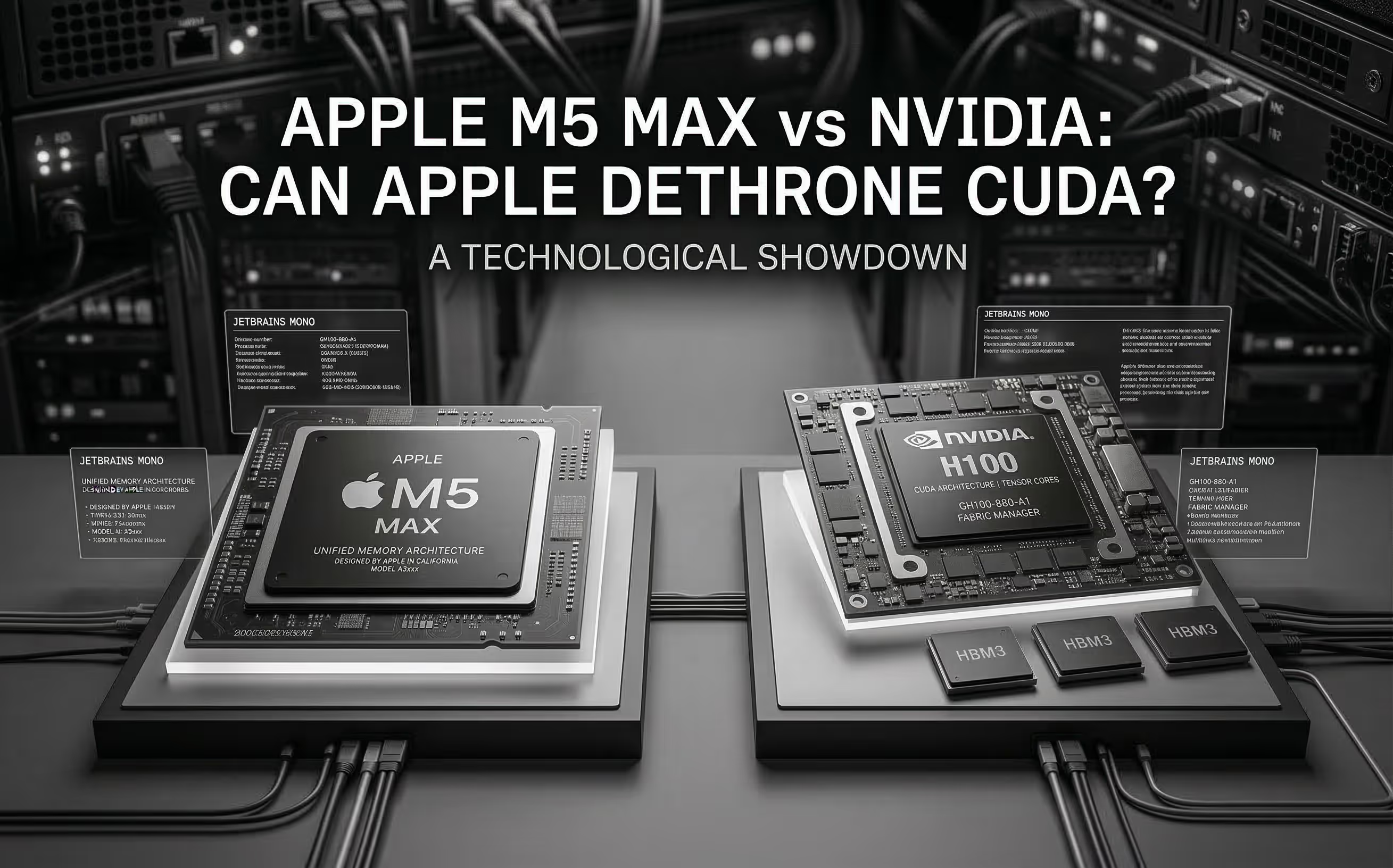
The M5 Max promises ~70 TFLOPS FP16 through dedicated Neural Accelerators and 128 GB unified memory at 614 GB/s. We analyze the architecture, benchmark Apple's claims, and compare head-to-head with NVIDIA for AI inference.
Cloud GPU pricing looks aggressive on paper. But hourly rates hide commitment traps, counterparty risk, and debt-funded subsidies that change the math entirely. Here is what your finance team should model before signing.